Searching for a PFD can be challenging sometimes because these PDFs have content that is image-based and scanned, and they can not be searched directly. Sometimes, these PDFs may have layers and special characters that can make indexing and retrieval by search procedures difficult. However, it is important for you to know how to search for PDFs on Google so that you can find authoritative information efficiently and specific documents online. Most of the time, PFDs are used for academic purposes, government reporting, and official documents, which makes them an important source of information. In addition, here are a few steps that must be followed when searching for PDFs on Google.
Step 1.
Open Google Search – The first step that you follow to Google search PDF is, either go to Google.com or open a Google search in your browser’s address bar
Step 2.
Use the filetype: pdf operator – You can go to the search bar and type filetype: pdf with the query that you are looking for.
Step 3.
Narrow down your search – If you want to search for a particular website, then you have to add site:example.com after filetype: pdf.
Step 4.
Review Results – Google will show you all the results that are specifically PDF files, which will make it easier for you to find the information that you need without having to filter other files.
A few Google PDF search tricks
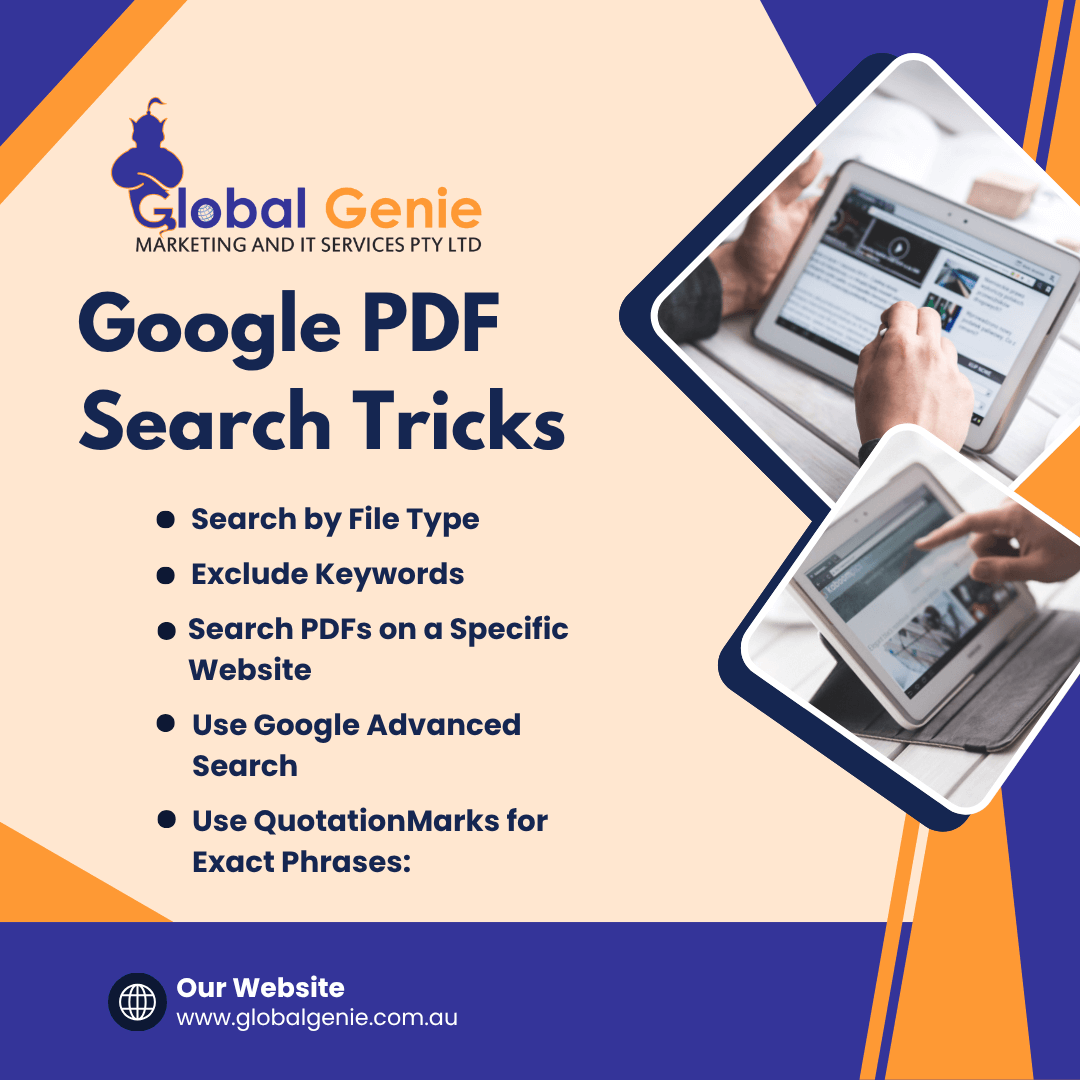
- When you are searching for a PFD file then you can simply use the filetype: pdf. For example, if you are looking for a PDF about a resume, then you will use the resume filetype: pdf. The Google PDF search trick is so easy to use with specific file types.
- If you want to find a PDF on a particular website, then you can use keywords that are related to the PDF you are looking for and filetype: pdf.
- Excluding the keywords from your search query by using the minus sign before a word.
- You can close the specific phrases in quotation marks in your search query to find those phrases in a specific order.
- By using Google Advanced Search, you can find a PDF effectively because it allows you to choose a PDF from the file type dropdown menu. It also allows you to use other filters like region or site, and domain.
- Cool Previews and ezLinkPreview are those browser extensions that can provide better PDF previews, that too directly in search results.
Benefits of searching PDFs with trusted domains
- When you search for a PDF from trusted domains like ‘edu’, ‘gov’, or ‘org’, you are very likely to get accurate and right information.
- By setting a limit to your search to a domain, you can find content that is related to your search query. You can get content without having to search through irrelevant results.
- You can save time and find PDFs effectively by searching them within trusted domains. This procedure saves your time by providing more correct search results, which reduces your time from browsing through multiple pages.
PDFs on Google Scholar
When you want to search for academic information, Google Scholar is the best search engine to use. It is a free search engine that is specially designed for academic and school literature, and students can find a wide range of materials, including articles, books, etc. You can use Google Scholar to find specific articles, track citations, etc, and you can also save articles for later access.
Conclusion
You can easily find a PDF on Google once you understand how the search engine works. You can find different PDFs related to academic purposes and government publications, etc. By following the tricks given above, you can find the PDFs effectively. In addition, this blog contains all the information regarding how to search for PDFs on Google.